Lag is a general word for three different problems: network delay, where your actions register late; frame drops, where the picture stutters; and input delay, where the screen responds slowly to your thumb. Fixing lag while using FF Kipas starts with identifying which of the three you actually have, because each one has a different cause and a different solution.
This guide walks through a simple diagnosis first, then the fixes for each category in the order most likely to work. Randomly applying every tweak you have ever heard of wastes an evening; matching the fix to the symptom takes twenty minutes. The main app page is FF Kipas APK latest version, and the sections below focus entirely on smoothness.
Step One: Identify Your Type of Lag
Watch the game's ping readout during a bad moment. High or spiking ping numbers point to the network. A stable low ping with a stuttering picture points to frame drops on the device. A smooth picture where your character still feels like it moves through syrup points to input or display delay, often from heat or an overloaded system.
Also note when the problem happens. Lag that starts after fifteen or twenty minutes suggests heat. Lag only in busy final circles suggests the device struggling with many players on screen. Lag everywhere, including the lobby, suggests a general device or connection problem rather than anything game-specific. These observations decide which fix section below deserves your attention first.
Fixing Network Lag
For network delay, the biggest wins are boring and effective: play on a stable Wi-Fi connection where possible, stay reasonably close to the router, and keep other devices from saturating the connection with streams or large downloads during your session. On mobile data, a strong signal area matters more than the network generation printed on the box.
Restarting the router occasionally, closing background apps that sync or upload, and avoiding VPN services while playing all remove hidden load from the connection. If ping spikes happen at the same time daily, the cause is usually household or network congestion rather than your phone, and shifting your session time can help more than any setting.
Fixing Frame Drops on the Device
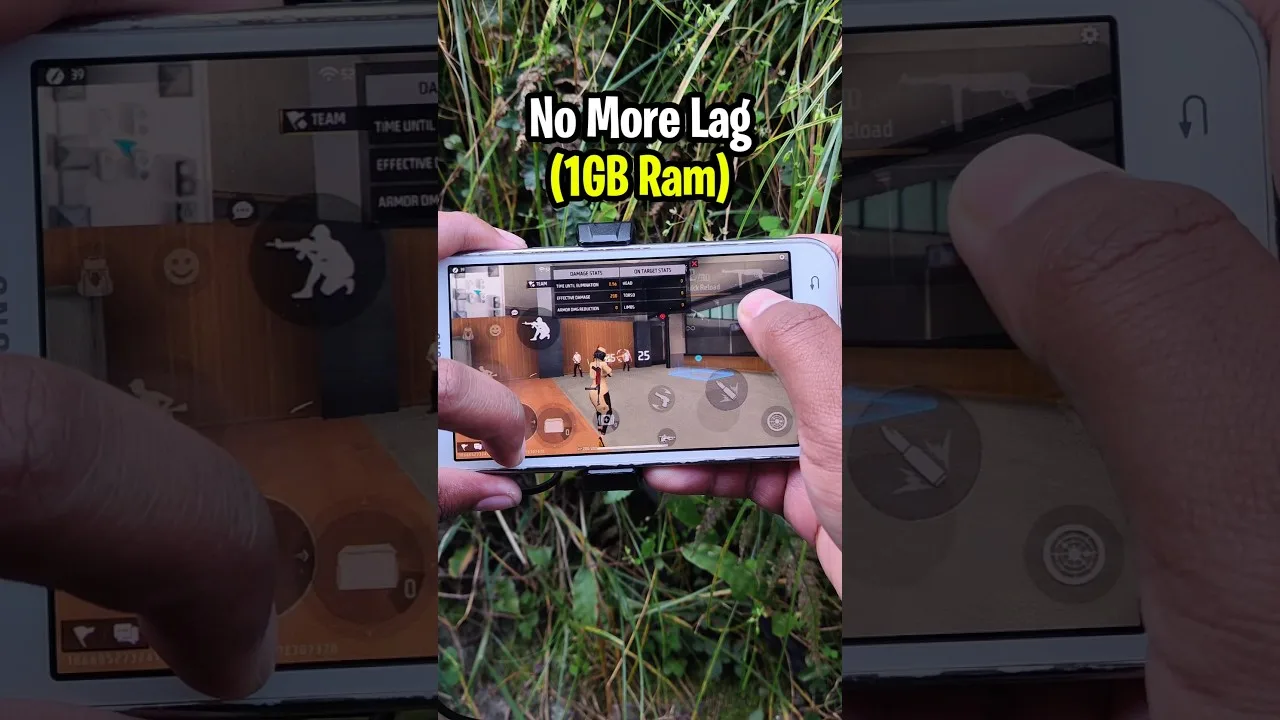
Frame drops are a device workload problem. Free storage space, close background apps before playing, and lower the in-game graphics settings until the frame rate holds steady in busy scenes. A locked, stable frame rate at a lower setting plays better than a higher setting that collapses exactly when fights get intense.
The broader routine in FF Kipas performance tips for low-end phones covers this ground in detail, including battery savers that quietly cap performance and should be off while gaming. On the panel side, keep only the sections you use active during play; every extra visual layer is one more thing a modest phone has to draw sixty times a second.
Finally, keep a simple lag log for a week if the problem resists diagnosis: the time of day, whether the phone was warm, the ping you saw, and whether the picture or the response felt wrong. Patterns that are invisible in the moment become obvious on paper. Evening-only problems point at household network load, problems that grow through a session point at heat, and problems on one map or mode point at device load in busy scenes. Five lines of notes can do what an evening of random tweaking cannot, which is tell you which of the three lag types you actually have. Once the log names the pattern, the matching section above becomes a short, confident fix instead of a guess.
Heat, Throttling, and the Twenty-Minute Wall
If your first matches are smooth and later ones degrade, suspect thermal throttling: the phone protecting itself by reducing processor speed as temperature rises. The pattern is so consistent that timing alone nearly proves it. Heat comes from the game, the screen brightness, charging during play, and cases that insulate the phone.
Counter it directly: lower brightness, remove the case for long sessions, avoid playing while fast-charging, and take short breaks between matches to let the device cool. Playing in a cooler room helps more than most software tweaks. If the twenty-minute wall disappears after these changes, heat was the whole story and no deeper fix is needed.
When the Panel Itself Seems Slow
Sometimes the game runs fine but the panel opens slowly or its overlay stutters. That pattern points to the app being restricted by battery optimisation, starved of memory by background load, or holding a stale cache after an update. Exempt the app from aggressive battery saving, restart it cleanly, and clear its cache from Android settings before assuming the build is faulty.
If panel problems arrive together with crashes or sections failing to load, treat it as an app health issue rather than lag. The systematic checks in FF Kipas not working fixes cover that territory. Keeping the categories separate stops you from applying network fixes to an app problem, which is the most common way lag troubleshooting turns into an all-evening project.
Keep expectations realistic at the end of the process: these fixes recover the performance your device and connection genuinely offer, and for most players that recovered level is perfectly playable. Chasing beyond it leads to endless tweaking, when the honest ceiling was reached several fixes ago.
Final Thoughts
Lag is not one problem, and it does not have one fix. Read the symptom first: ping for network, picture for frames, timing for heat. Apply the matching fix, test in a real session, and your time with FF Kipas should settle into the smoothness your device and connection can genuinely deliver.