Sensitivity settings control how far your crosshair moves for a given swipe, and they are the single biggest factor in whether your aim feels calm and repeatable or wild and tiring. In FF Kipas, sensitivity values work alongside the in-game settings, so understanding what each slider actually changes is the starting point for any serious tuning.
Copying another player's numbers rarely works, because screen size, DPI, grip, and swipe length all change how a value feels. This guide explains each setting in plain terms so you can build values that fit your own hands. If you are new to the app itself, get FF Kipas APK first, then return here when you are ready to tune.
General Sensitivity and Camera Movement
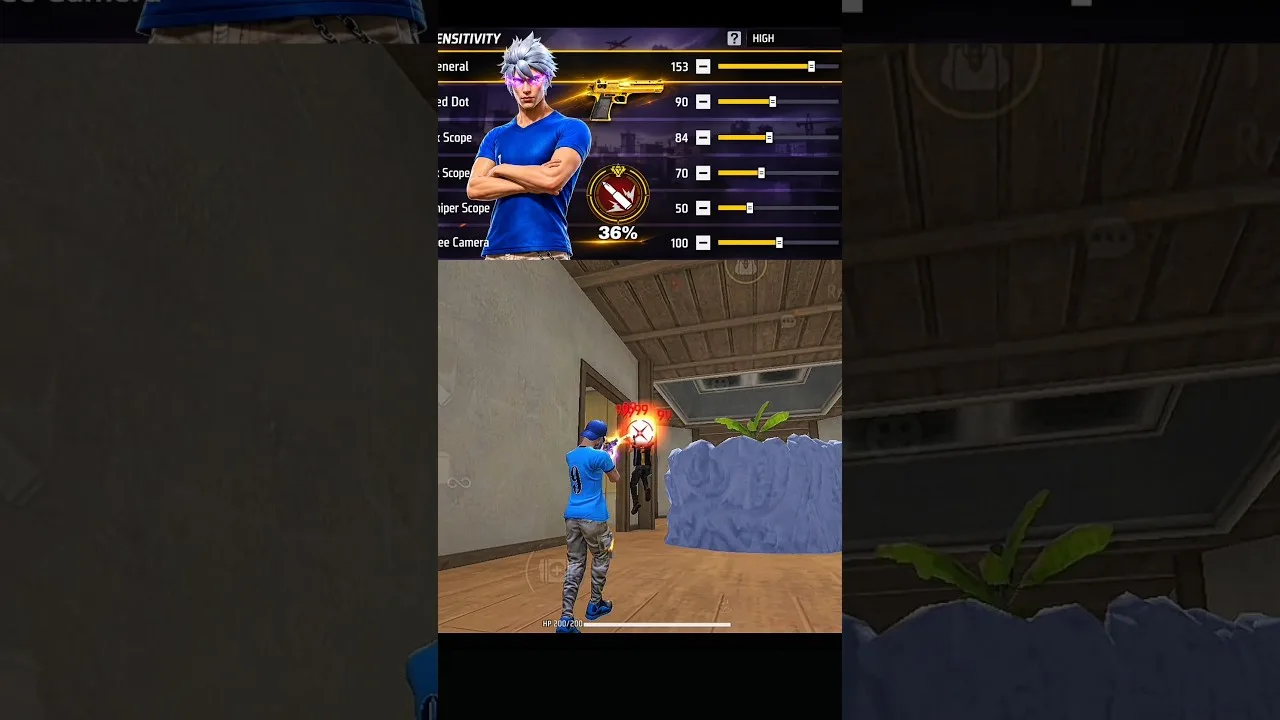
General sensitivity governs how quickly the camera turns when you swipe without aiming down sights. It decides how fast you can check corners, respond to sounds beside you, and track a moving opponent at close range. Set it too low and turns feel heavy; set it too high and every small thumb movement overshoots the target.
A good working range is one where a comfortable swipe turns you roughly 180 degrees without lifting your thumb twice. Test that turn in practice, not in a match. If you consistently turn past where you intended, lower the value in small steps. If you run out of screen before finishing the turn, raise it slightly and test again.
Red Dot and Close-Range Aim
The red dot value controls aim movement while using a red dot sight or aiming at close range without a scope. This is the setting that shapes most early and mid-game fights, where targets move quickly and the engagement distance changes second by second. It needs to be fast enough to follow a strafing opponent but steady enough to stay on the body.
Tune red dot separately from general sensitivity. A common pattern is keeping general movement a little faster for turning, while red dot sits slightly lower for control during the actual shot. Change one value at a time during testing, because adjusting both together makes it impossible to tell which change helped.
Scope Sensitivities From 2x to Sniper
Each scope level has its own sensitivity because magnification changes how movement appears on screen. At 4x or sniper magnification, a swipe that felt small at red dot distance swings the view a long way, so scoped values usually sit lower than close-range values. The sniper setting also interacts with how steadily you can hold on a still target.
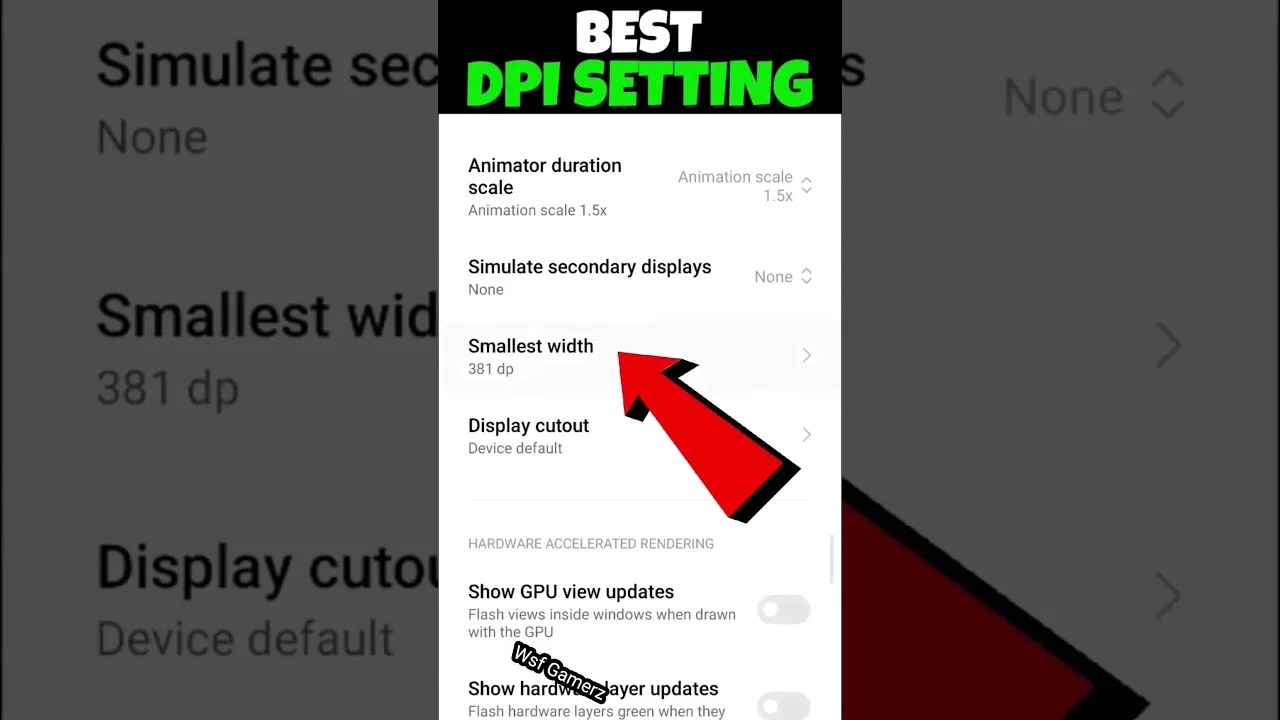
Work through the scopes in order. Set 2x first using medium-range targets, then 4x, then the sniper scope, checking each at the distance it is actually used. The FF Kipas DPI settings guide matters here as well, because DPI changes the physical distance your thumb travels, and sensitivity and DPI should be tuned as a pair rather than in isolation.
Do not overlook gyroscope sensitivity if your phone supports it and you play with gyro enabled. Gyro values control how tilting the phone moves your aim, and they layer on top of touch sensitivity rather than replacing it. Gyro players usually keep touch values slightly calmer, because fine corrections come from the tilt instead of the thumb. If you play without gyro, ignore those sliders entirely and resist copying values from gyro players, whose numbers assume a second input method you are not using. Either way, the test is identical: fixed drills, small steps, and written notes, because a sensitivity setup you arrived at by measurement will always outperform one assembled from other people's preferences.
How Sensitivity and Headshot Aim Connect
Players chasing drag headshots often raise sensitivity hoping the crosshair will climb faster, but the real requirement is a value that lets the crosshair rise smoothly and stop at head level. Overshooting the head is just as costly as stopping at the chest, and both problems come from a value that does not match your swipe length.
Build the base values first using this guide, then refine them with the focused drills in the FF Kipas headshot settings tips. That order matters: headshot technique built on unstable base settings will feel inconsistent no matter how much you practise, while a stable base makes the technique repeatable from match to match.
A Simple Tuning Routine That Works
Change one setting at a time, in steps of about five points, and test each step with the same short drill: a few turns, a few tracked targets, and a few scoped shots. Write the result down. Players who skip the notes end up circling back to values they already rejected without realising it.
When you are ready to install the current build and start tuning on your own device, the download page has the file. Expect the process to take a few sessions rather than a few minutes. Sensitivity is personal muscle memory, and small, tested steps build it far more reliably than one copied configuration ever will.
Finally, revisit your values after any major game update or phone change. A new screen protector, a different case thickness, or a system update can all shift how a swipe feels, and a short drill session will tell you whether your settled numbers still describe your hands or need a few points of correction.
Final Thoughts
Sensitivity settings are not magic numbers; they are a match between your screen, your DPI, and your hands. Understand what each slider does, tune in small recorded steps, and test at real engagement distances, and the values you settle on will stay useful far longer than any copied setup.